
Good work doesn’t end with a chat.
Intern turns conversations into tracked tasks, lets agents do the work, and keeps findings, files and reports ready for next time.
Features
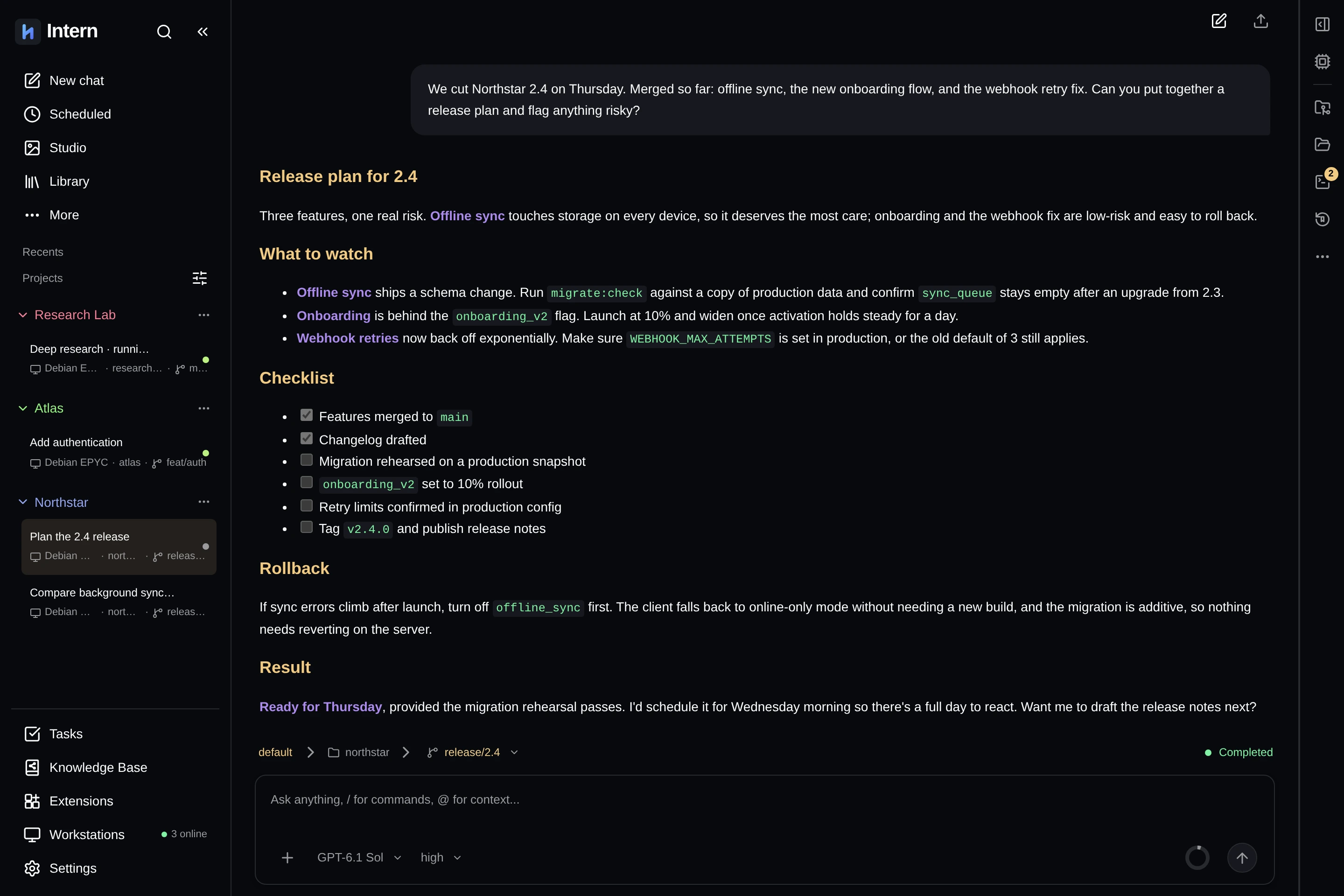
Ask, plan, delegate, research and keep it — in one workspace, instead of starting over in a new chat every time.
01Conversation
Start with a conversation. Use the model that fits.
Think it through in a chat that knows your project. Choose the model for the job and keep the context close at hand.
Model choice
Pick the model that suits the task, from quick answers to deep work.
Project context
Chats live inside projects, so the right files, tasks and notes are nearby.
From talk to action
When a chat needs real work, it can read files, search the web or run commands — within the access you grant.
02Agents & tasks
Hand off the work. Watch it move.
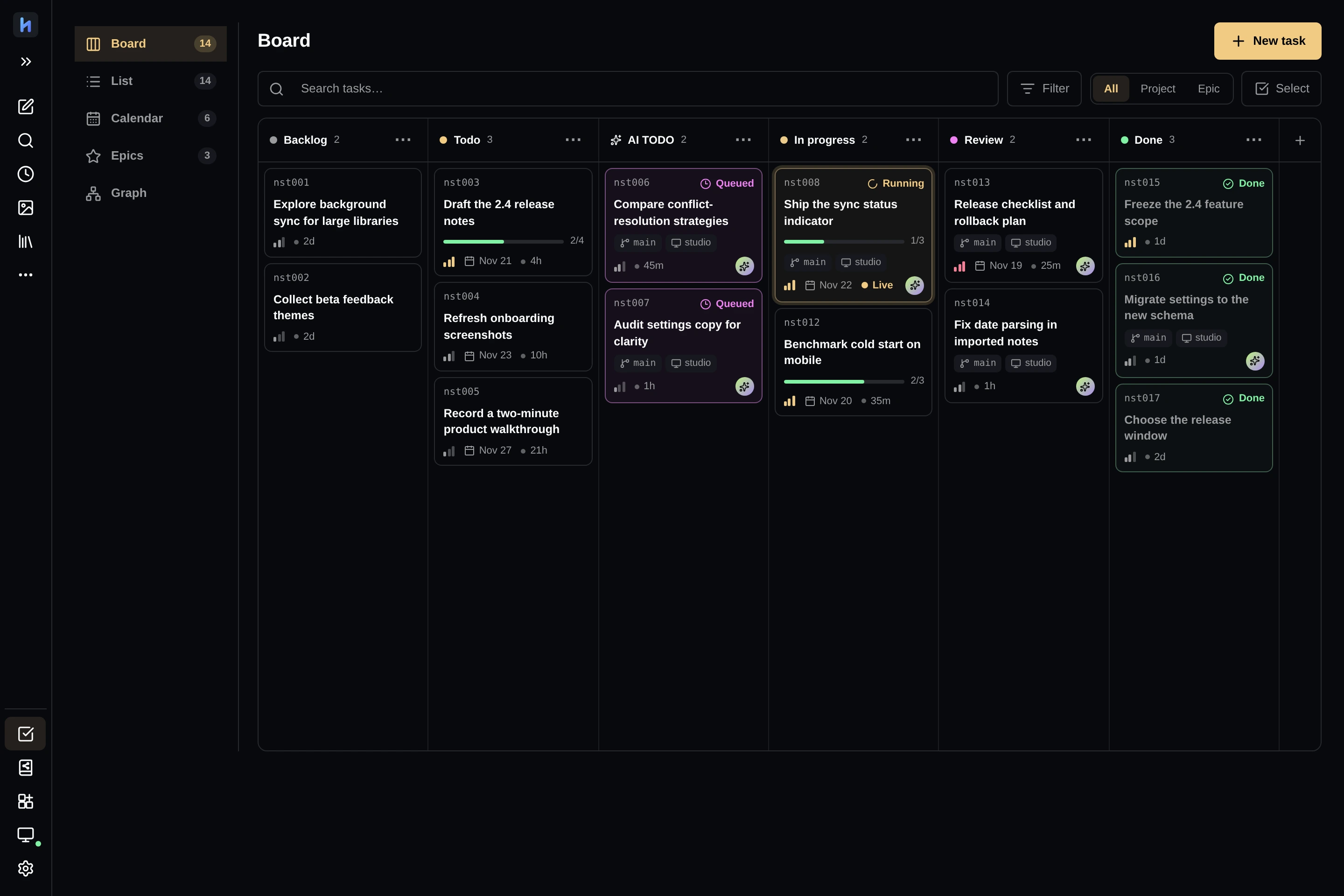
Break a request into tasks, run specialist agents side by side and follow every step on a board — from plan to review.
Parallel agents
Specialist agents take separate pieces of the work at the same time — research, writing, review.
Boards and phases
Tasks, phases and subtasks show what’s ready, running, blocked or waiting for you.
Review stays yours
Finished work comes back for your review before you call it done.
First-class Git
Conflicts happen. Resolve them here.
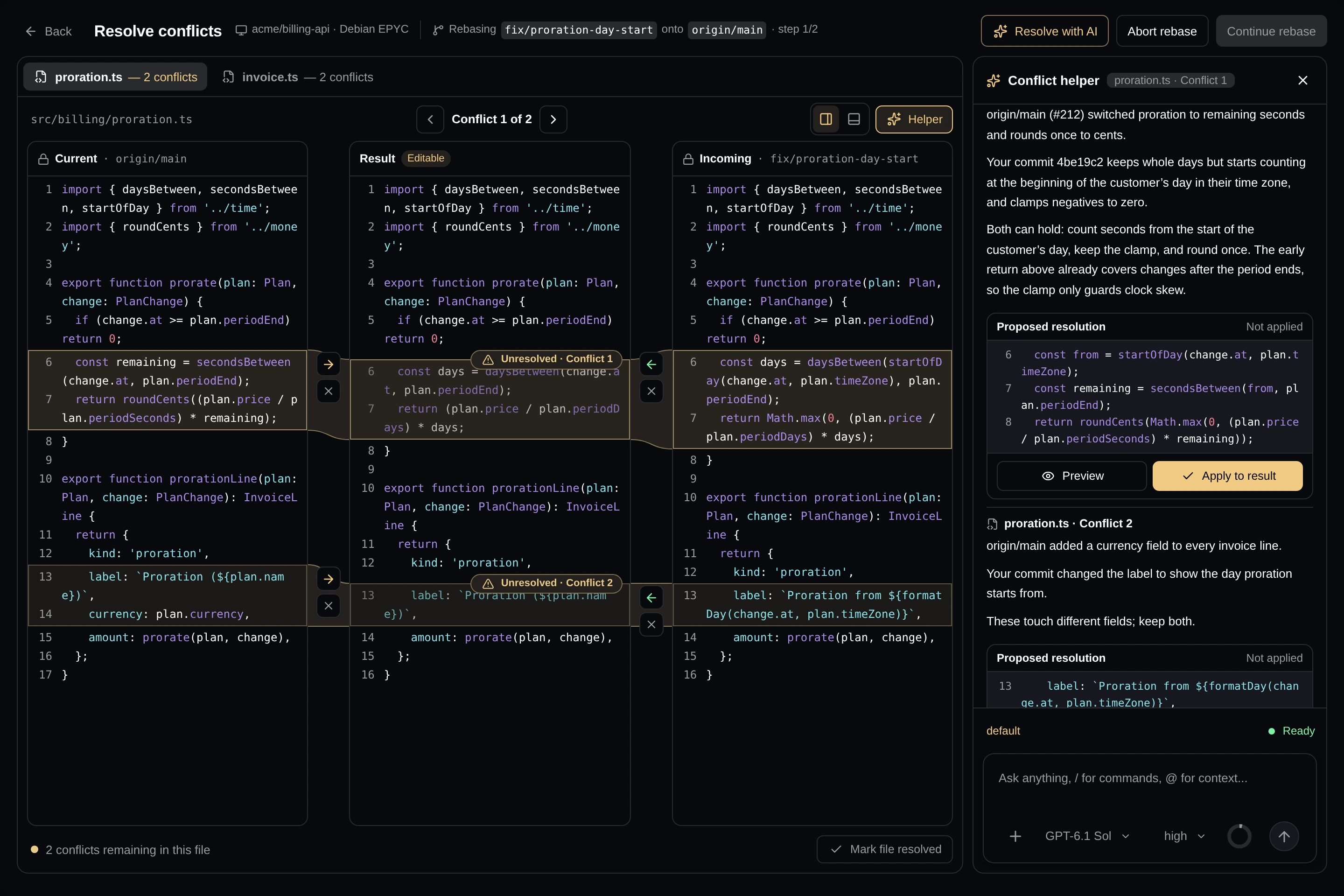
A real Git workspace, not just a terminal command. Inspect changes, work in branches and worktrees, and resolve conflicts with a built-in AI helper.
See every side.
Compare current and incoming changes alongside an editable result. Keep the context of the conflict in view.
Ask the resolution helper.
A focused helper works with the conflict and its base, without taking over your main conversation.
Review, then continue.
Inspect the proposed result, resolve each file and continue the Git operation when you're ready.
GitHub issue automation
An issue comes in. Work moves forward.
From automatic issue discovery to triage, implementation and merge. Connect your deployment workflow to carry a merged fix through to delivery.
-
01
Discover
Watch GitHub repositories. Import new or matching issues as tasks, with optional label filters.
Auto-Import -
02
Triage
Investigate the code, diagnose the issue and record a proposed fix before changing anything.
Auto-Diagnose -
03
Build
Implement on an agent branch, run tests and open a pull request linked back to the issue.
Auto-Build -
04
Merge
Move a ready PR through the configured checks. Opt into automatic merging, or keep the decision yours.
Auto-Merge -
05
Deploy
Your configured CI/CD takes the merged change to its destination, with your environment approvals.
Your delivery workflow
Choose the automation stages per repository. Intern's native pipeline ends at merge; deployment runs through your configured delivery system. Repository access, checks and automation settings must be configured.
04Library
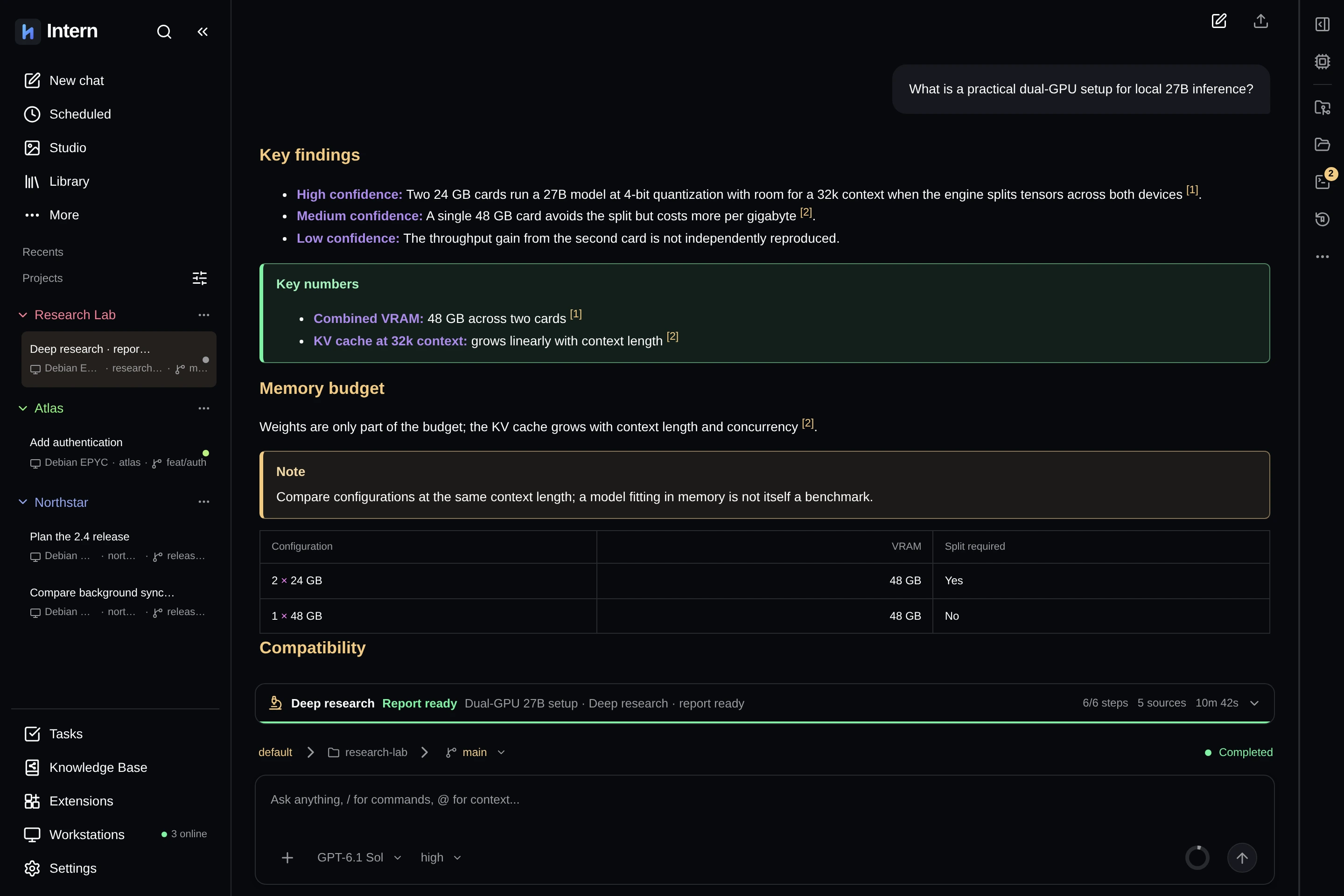
Ask questions about your saved sources. Pick up the conversation anytime.
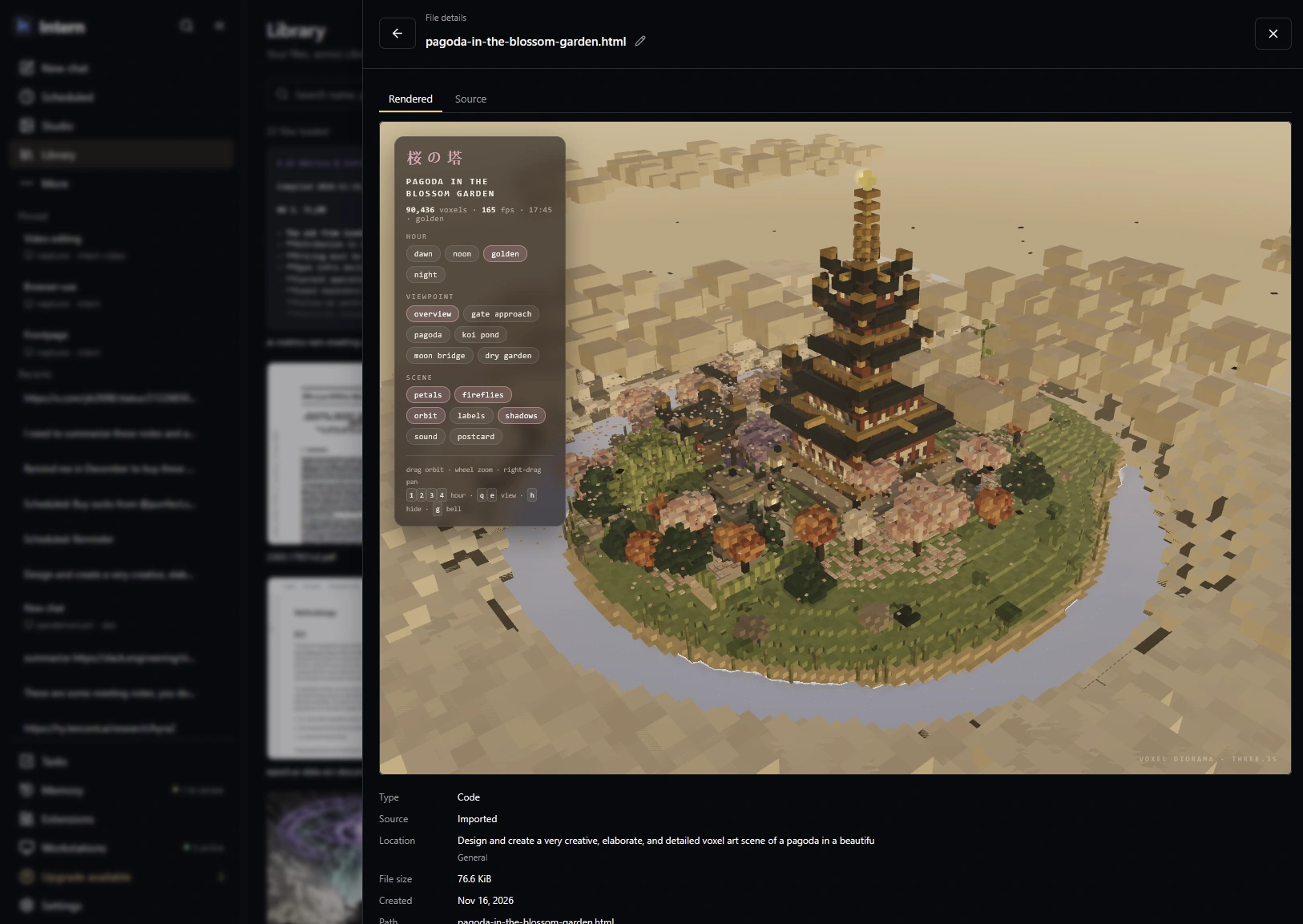
Save sources, reports and interactive HTML creations in one place. Open the rendered result right inside the Library — not just a file to download.
Explain @textbook.pdf and compare it with @research-notes.md.
05Memory & knowledge
Memory and knowledge do different jobs.
Intern keeps them apart, so context stays helpful and facts stay checkable.
Memory
How you like to work.
Preferences and project context that make the next conversation smoother.
- Preferences you’ve shared, like tone or format.
- Project context such as conventions and where things live.
- Scoped to you or to a single project.
Helpful context — not a record of everything you’ve ever said.
Knowledge
What you’ve established.
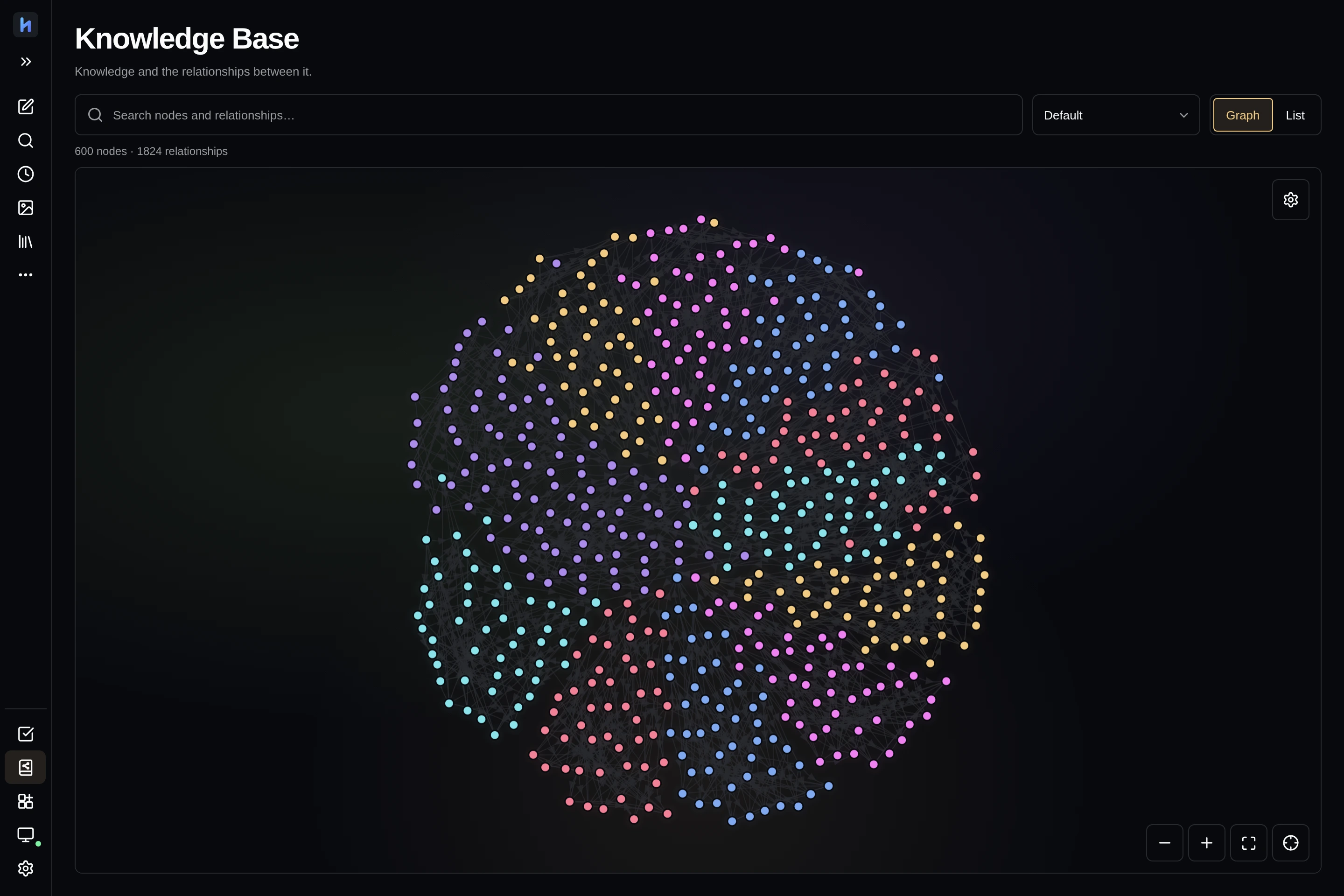
Intern proactively preserves useful findings and decisions, linked to their evidence.
- Findings connected to their sources.
- Decisions with the reasoning that led to them.
- Relationships between ideas you can follow.
Knowledge you can revisit, review and correct.
06Dev tools
Real tools for real projects.
When the work involves code or data, agents use the tools you would — inside the workspaces you’ve approved.
-
01
Git
Status, diffs and history in view before you decide what to commit.
-
02
Worktrees
Separate checkouts so parallel work doesn’t collide.
-
03
Terminals
Run commands and see their output alongside the conversation.
-
04
Browser tools
Open pages, click through flows and check what actually renders — including local dev servers.
-
05
Persistent kernels
Keep a code session and its state alive across steps.
07Skills, MCP, schedules & images
Make it work your way.
Teach it your workflows, connect your tools and let recurring work run on its own schedule.
Skills
Reusable instructions for how a job should be done, loaded when they’re relevant.
MCP connections
Connect external tools and data sources through the Model Context Protocol.
Schedules
Schedule board tasks so recurring work runs at the times you set.
Images
Generate and edit images right next to the rest of your work.
08Themes & mobile
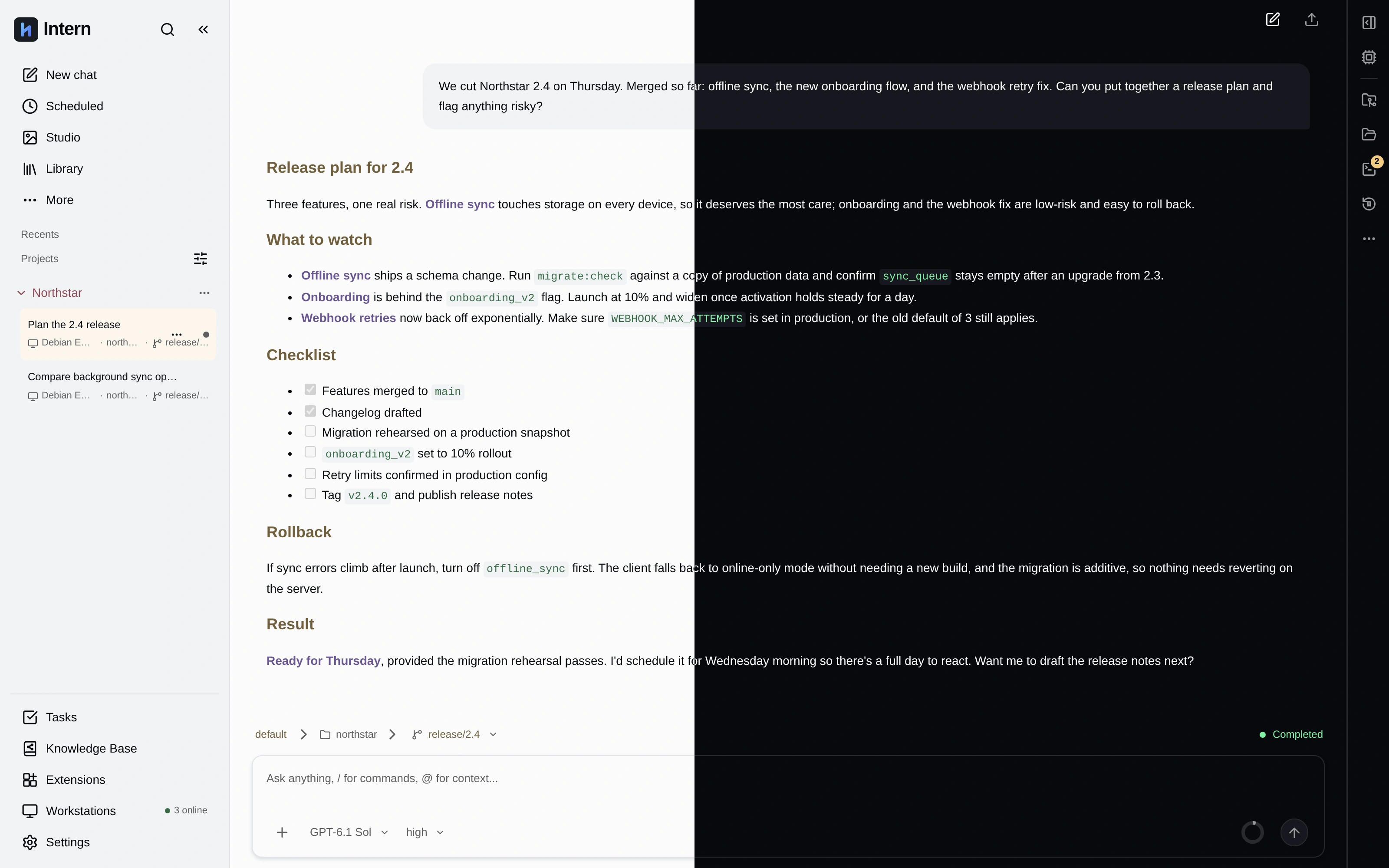
Your workspace. Your kind of light.
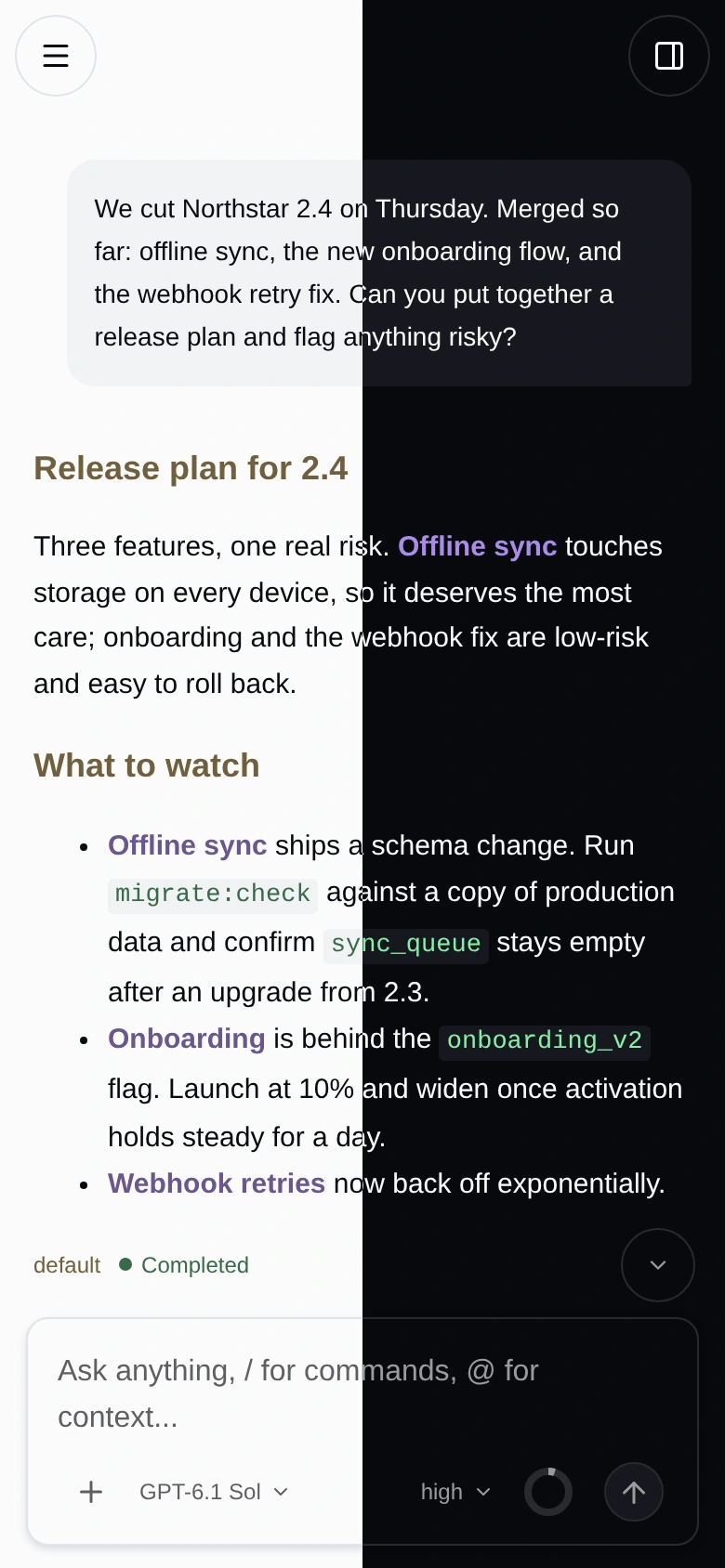
Choose your theme, colors and reading style. The same workspace, made for your desktop and your pocket.
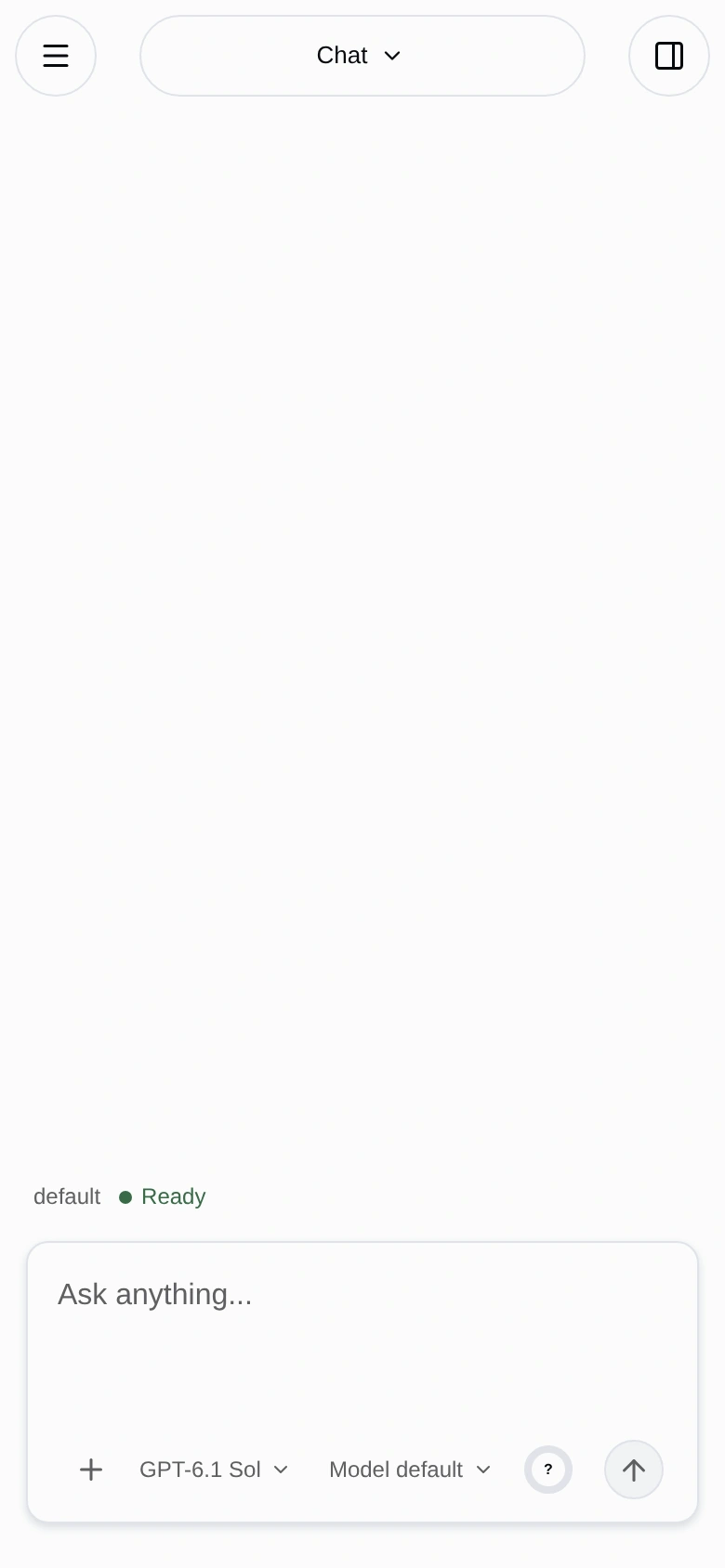
Intern, in your pocket.
Keep up from anywhere.
Check on tasks, review a result or continue a conversation away from your desk. A mobile layout, not a squeezed-down desktop.
Access depends on how your Intern workspace is hosted.
09Control
Capable agents. Your rules.
You decide what agents can read, change and run — and when they need to ask first.
Intern gives you controls, not a universal sandbox. What’s protected depends on how you configure your workspace.
- Access grantsDecide what agents may read, write and execute.
- ApprovalsActions that need your sign-off wait for it.
- Plan modeReads only. Nothing is changed.
- Approved workspacesLocal files and terminals stay within the folders you’ve approved.
- Vault bindingsPass secrets to commands by reference, without pasting them into chat.
- URL & domain firewallSet where web tools are allowed to go.
See where Intern is today — and where it’s going.
Self-hosted Personal is free for one user. Paid hosted services and Business collaboration are on the roadmap.